Kubernetes 101 - pods 3

In part 2 of pods 101 series, we explored how to deploy and configure Kubernetes pods declaratively using YAML manifest files. We used this manifest in a combined way to deploy multiple pods at the same time, which is the industry standard for deploying Kubernetes resources.
In this post we will expand on multi-container pods by deploying a sidecar container. Let's get started.
What is a sidecar?
 A sidecar (slightly different from the Indiana Jones motorbike version above), is a container that adds some kind of functionality without being required for the core application to function. A few examples of some tasks a sidecar might be used for in a pod is to scrape logs from the core app container, monitor content, broker connections or even provide extra security by encrypting network traffic.
Note that the sidecar differs quite a bit from the init-container, which is a type of container that prepares and initialises an environment so that it is ready for the core app container to run. Alternatively, the sidecar runs at the same time as the core application and shares the same network namespace resources.
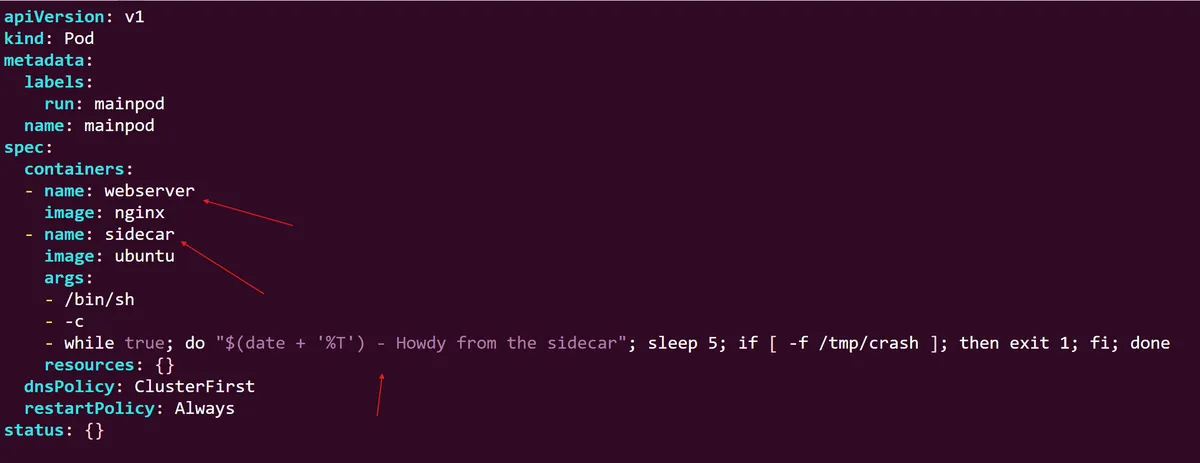
For us to deploy our sidecar, first we can take our combined.yaml manifest from the last post (if you still have it) and, using vim, switch around a few parts so that the nginx pod is clearly defined as the webserver and the ubuntu pod is set as the sidecar.
From there in the args: section of the manifest, we set the sidecar pod to execute a small bash while loop script, which will make it echo a hello message every 5 seconds, unless a crash file exists within the tmp folder which will cause it to exit.
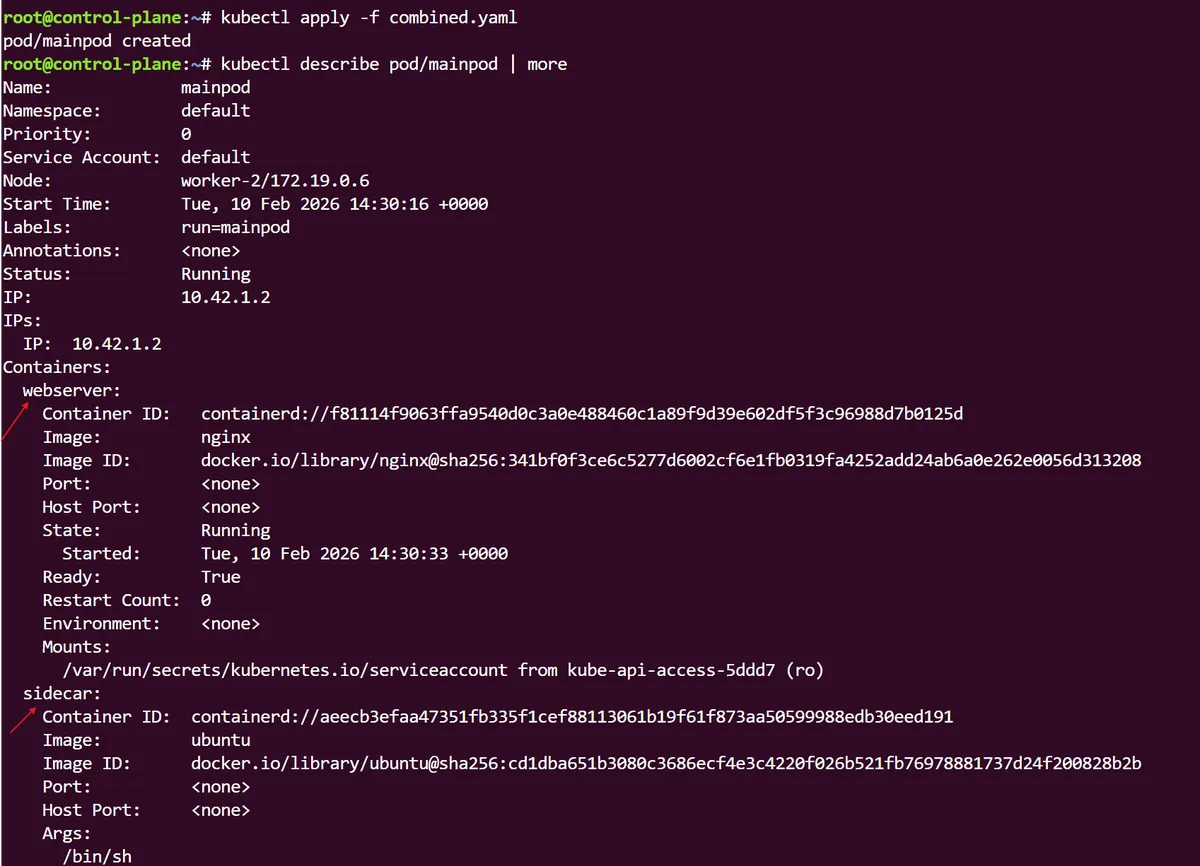
If we run a kubectl get command, we can see that within the our single mainpod we have 2 containers running with a single IP addressed shared between them. For a more granular look into this we can use a kubectl describe command to see the full details of each container within this pod.
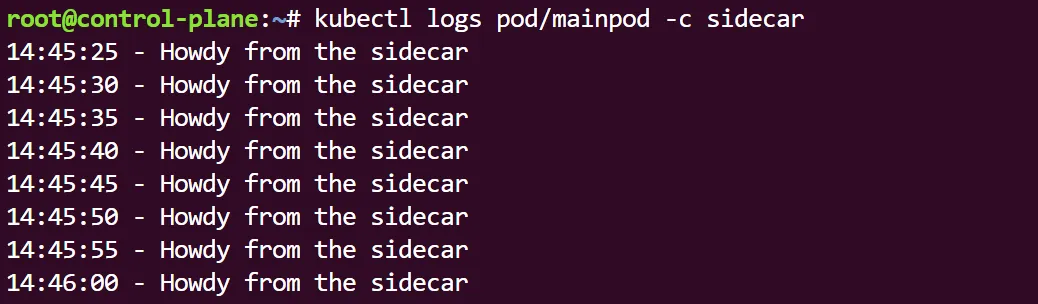
For us to see if the sidecar is actually working as expected, we can run a kubectl logs command, but with the -c option to make sure we specify the sidecar container's logs. We can now see that the sidecar really is echoing a hello message every 5 seconds as we configured it:
We can also check if our conditional exit command has worked, by using the kubectl exec command to interact with the sidecar pod, and create a crash file in the container's temp folder. As expected we can see that this does indeed crash the pod.

This section of the 101 series has been a very basic introduction to the power of Kubernetes pods. We have explored most of the basic commands needed to configure and deploy them, as well as the use of multi-container pods and how to use a sidecar container within this configuration. Pods are a seriously powerful abstraction layer that allows us to deploy our containers and applications with an enormous amount of possible configurations. Without Kubernetes pods, there is no Kubernetes architecture.
thanks for reading,
Mehmet