Linux by Fire Part 2: Partitioning Arch Linux

In the last part of this series I booted Arch Linux onto my mini PC before setting up an SSH connection to it from my laptop. Now we will continue the installation process of Arch by partitioning our system, making use of LVMs (Logical Volume Manager) and full-disk encryption.
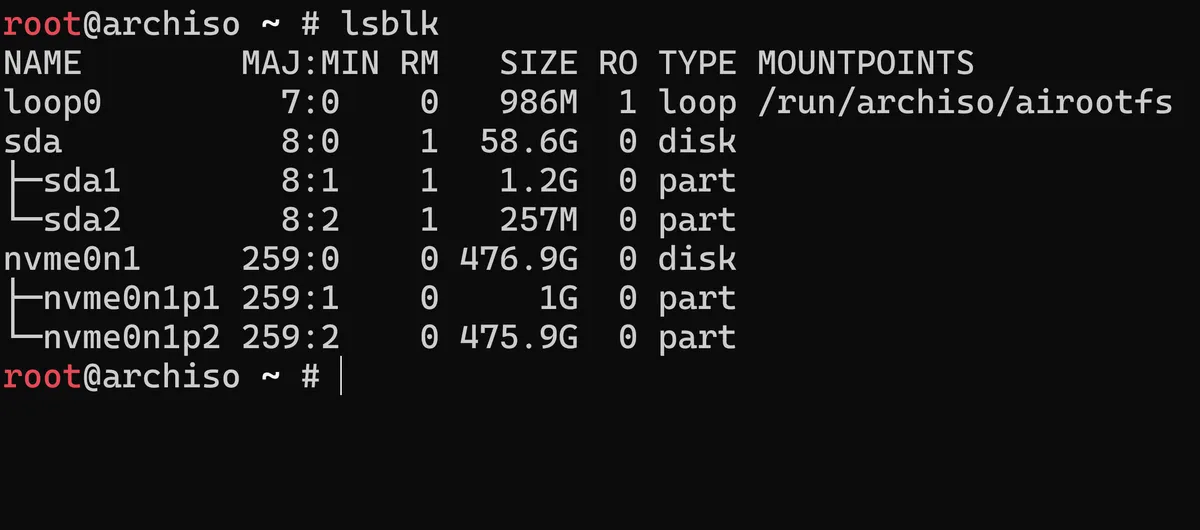
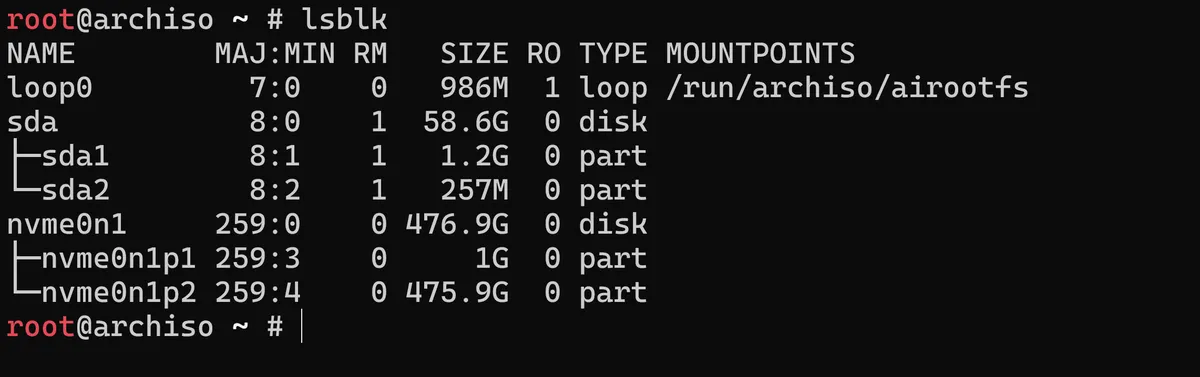
If we start by by running the lsblk command we can see that there are two physical storage devices on our machine:
sda - the 58.6GB USB drive we used to boot Arch Linux on the Mini PC. nvme0n1 - the main 476GB SSD drive for the machine.
My goal is the correctly partition the main nvme0n1 drive and organise it neatly and efficiently. The key consideration I need to make with the partitioning scheme is exactly how I am going to structure it. Traditionally, partitioning physical systems can be quite rigid and, if I want to make any changes later, can be quite finicky to manage.
It's for this reason I'll be using LVM or Logical Volume Management for the partitioning of this Arch Installation. LVM creates virtual partitions called logical volumes that differ from standard disk partitions, as they can easily span across multiple drives and can be dynamically resized on demand without having to unmount the entire file system or interrupt any critical running services.
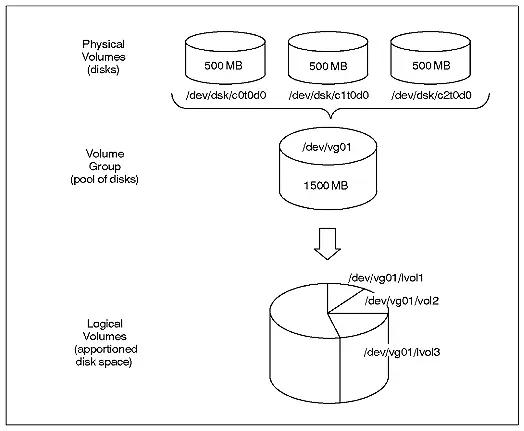
This flexibility means that I will be able to start with minimal space for my root filesystem and without running into any facepalmed "I wish I'd made this partition bigger!" moments, as we will retain the ability to increase the size of a filesystem further down the road.
Something else we will need to consider in tandem with partitioning our Arch installation is encryption. Using Linux Unified Key Setup or LUKS we can make sure that our machine and data is protected at rest. Even if this installation of Arch is primarily for educational purposes, it should be a default to ensure disk encryption on our Arch installation, especially given how easily this security will pair with our use of LVM.
One of the risks of partitioning Arch Linux is that, unlike other distros like Ubuntu for example, a simple graphical installer is not given to users to "bundle" encryption into a single user choice. Rather, as we partition the drive we must execute commands sequentially to successfully encrypt our system. I will make sure that we have a single passphrase that unlocks the LUKs encryption which should then give access to all our LVM logical volumes.
Partioning using the fdisk Utility on Arch
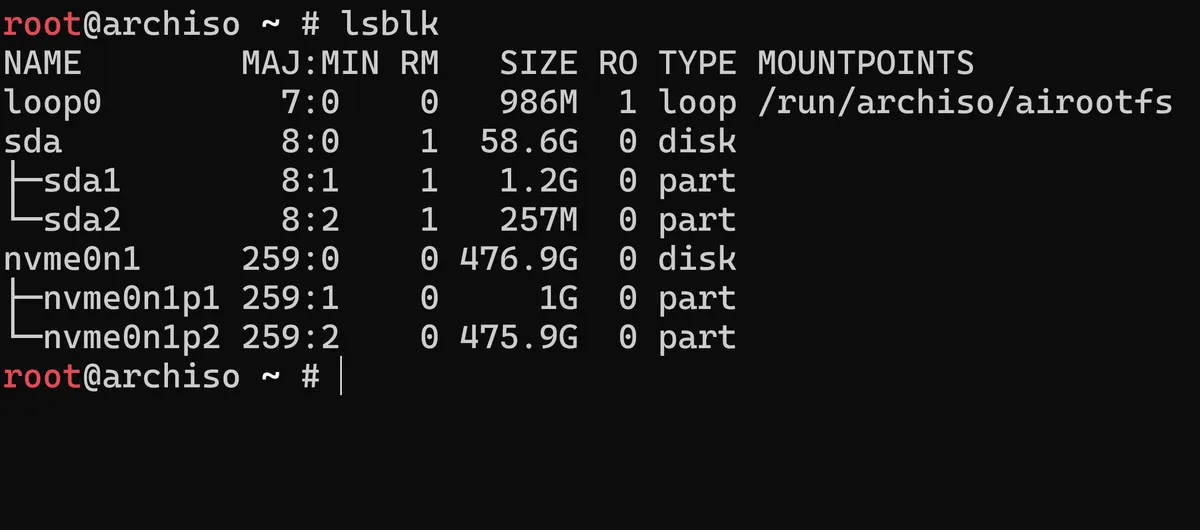
Looking back at our block devices with lsblk we will target the main nvme0n1 SSD drive on this system first. We will do this by using fdisk - fdisk is a fundamental command-line utility tool in Linux used specifically for the task of manipulating and partitioning tables. To enter the fdisk interactive shell with this drive, we use the command fdisk /dev/nvme0n1.
From here we are met with a plethora of options:
Welcome to fdisk (util-linux 2.42.1).
Changes will remain in memory only, until you decide to write them.
Be careful before using the write command.


Command (m for help): m

Help:

  GPT
   M   enter protective/hybrid MBR

  Generic
   d   delete a partition
   F   list free unpartitioned space
   l   list known partition types
   n   add a new partition
   p   print the partition table
   t   change a partition type
   v   verify the partition table
   i   print information about a partition
   e   resize a partition
   T   discard (trim) sectors

  Misc
   m   print this menu
   x   extra functionality (experts only)

  Script
   I   load disk layout from sfdisk script file
   O   dump disk layout to sfdisk script file

  Save & Exit
   w   write table to disk and exit
   q   quit without saving changes

  Create a new label
   g   create a new empty GPT partition table
   G   create a new empty SGI (IRIX) partition table
   o   create a new empty MBR (DOS) partition table
   s   create a new empty Sun partition table


Command (m for help):
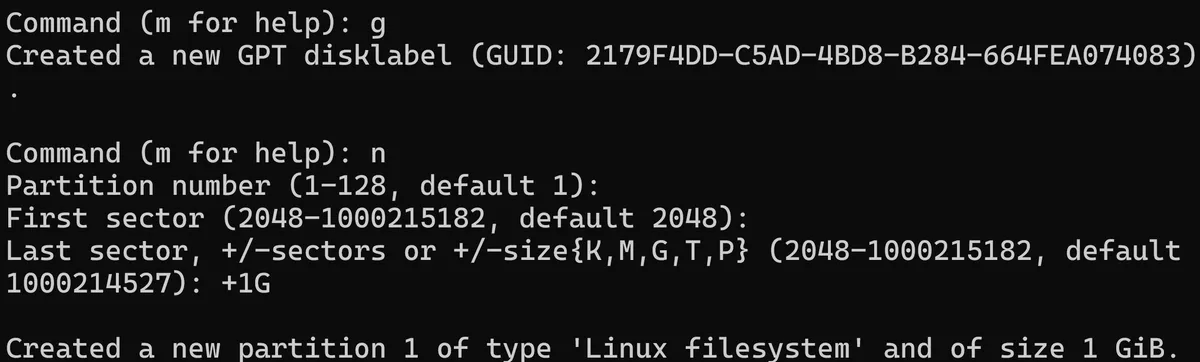
I'll start by creating a brand new empty GPT partition table by hitting g. This will wipe the slate clean and sets us up with the more modern partition scheme that allows for more partitions than the old MBR scheme. From there we can begin by setting up our first partition using the n key. This will default to the 1st Partition, which is what we want.
In this case I'll will set up the boot partition first. As recommended in the Arch Wiki 1.9.1 "Example Layouts" part of the Installation Guide, we should create a partition specifically for the boot with at least 1GB of disk space. After creating this, we can see that the partition has been created with the type of Linux filesystem which is actually not what we want for our boot partition.

But we can change this simply by hitting t to change the type, and L to list all the different partition types, we can see EFI System right at the very top which is what we want for UEFI system to actually know where to find the kernel at the start of the mini PCs boot process.
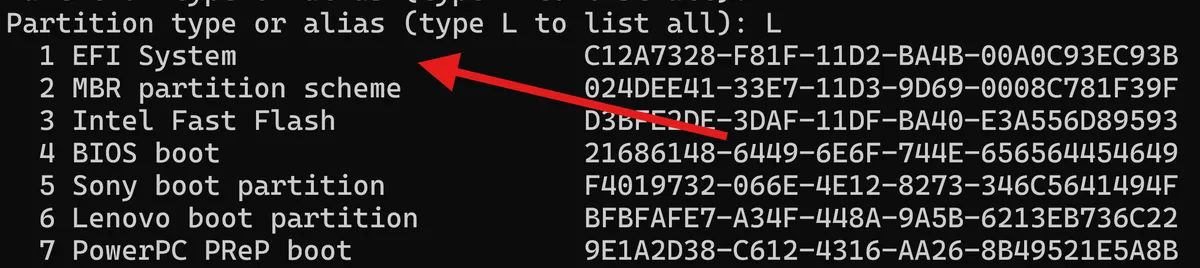
After creating the EFI boot partition we can now create the 2nd partition for the rest of the disk within the same LVM container. As explained earlier, this means that we will be able to have a much more fluid partition schema moving forward, as each of our partitions will all sit within LVM.

By selecting the 2nd partition we just created and choose 44 in the partition type list, it's here we choose Linux LVM. So now, instead of us being stuck with a fixed-size partitions that are a pain to resize later on, moving forward, LVM provides us with the flexibility to grow, shrink, or move logical volumes on our machine.
Using fdisks interaction shell again, if we use the p command to print the table, the preview shows us the 1GB EFI partition for our boot processes, and a 475GB Linux LVM partition for the rest of our disk space and usage.
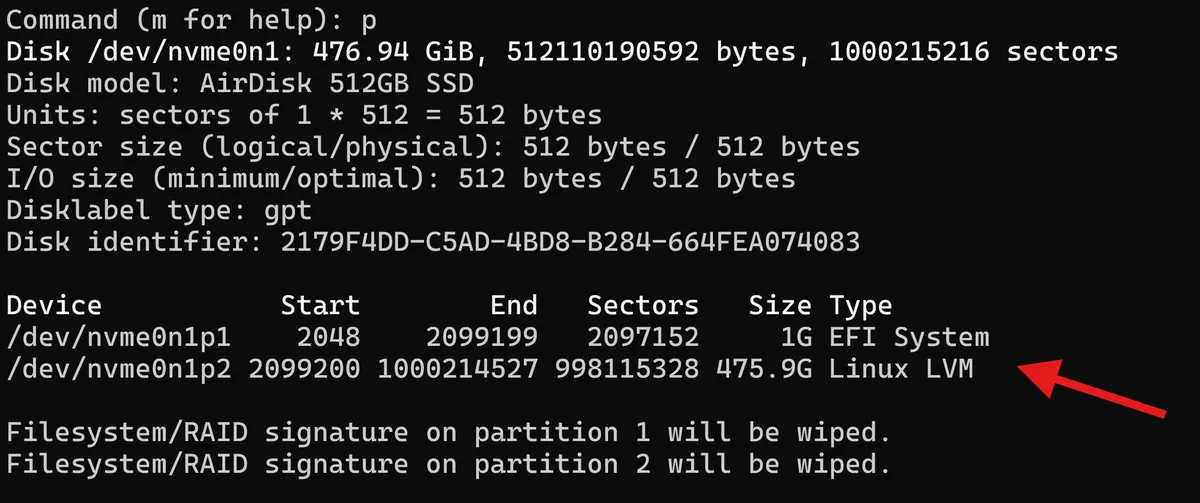
Finally in fdisk we need to hit w to make sure these settings are written and the partition table is actually altered. A final lsblk command in the main Arch Linux shell confirms that we have successfully partitioned the disk.
In the next post I will be using LUKs encryption in combination with LVM.
Thanks for reading,
Mehmet