Linux by Fire Part 10: Installing Hyprland
Throughout this series you have (hopefully) followed my journey in building an Arch system from the ground up. I have gone through the finer points of Arch installation, partition, encryption, networking, boot loading and, behind the scenes, there were numerous times that I failed and even had to start the build all over again. It has not been a smooth ride, but as I mentioned in my first post of the series this has been the point of the project. To build an Arch system from the ground up and fall on my face several (many) times to reinforce how Linux actually works in its totality.
Now we have arrived at an important juncture: the graphical interface of Arch. What will I use to turn my Arch build from a blank screen and cursor to something actually resembling a personal computer. So in this final part, I'll be installing Hyprland, a modern Wayland compositor and tiling window manager.
This isn't the easiest option and, to be honest, has caused some headache in the preparation for this post. There were other options for a GUI and tiling window manager like Gnome or cosmic for example, but as I'm dedicated to understanding every layer of my system, the easiest option isn't what I'm looking for here. Let's dive in.

What is a Windows Manager?
Before I go further, it's probably worth understanding exactly what we're installing and why it matters. In the Linux ecosystem, there are two primary flavours that GUIs come in and their distinctions and attributes are important:
Desktop Environments - Like GNOME, KDE Plasma or COSMIC, these are "all-in-one" solutions. They come with everything pre-configured for us to use after installation. A panel, app launchers, various setting menus, file managers, terminal emulators and a suite of default applications that save you the trouble of having to configure everything yourself. Within a few minutes of installing these environments, the idea is that you have a polished, user-friendly desktop ready for use.
Windows Managers - Like Hyprland (which I'll be installing), i3or Say are much leaner than Desktop Environments as they only manage exactly how windows are arranged on our screen. No default applications, no settings, no file manager or specific terminal emulators. These leave you in charge of how everything looks, how everything is rendered and, as you ultimately have to configure everything yourself, force you to learn how Linux actually works. In this case, this is why Windows managers are preferable for my specific project.
Xorg vs Wayland Display Protocols
There are two ways of drawing things a screen in Linux. Xorg, a 25 year old protocol that, while not being maintained anymore, is still widely used. Xorg works everywhere but due to the lack of maintenance has somea security issues and legacy baggage. It's also prone to some performance issues on modern hardware, though I've never actually seen this for myself.
Wayland is essentially the modern replacement and solution for the antiquity and legacy issues of Xorg. It is meant to more secure, smoother to use and has been designed specifically for the hardware of today. Wayland is definitely the way forward, but its youth also comes with some compatibility problems, especially with gaming and (until recently) screen sharing.
As Hyprland is a Wayland Compositor which is a fancy way of saying that it uses the Wayland protocol directly, making it faster and smoother than older Xorg-based managers.
Installing Hyprland
Following along with the Hyprland installation wiki I can see that the first part of the installation on Arch is simple with a sudo pacman -S hyprland. It's quite a hefty package at 500mb, which makes sense as there are 46 different packages being installed for Hyprland to work on my Arch build.
The tutorial I'm following mentions that if you are using NVIDIA drivers on your machine, you may have some issues with this and will have to also install the nvidia-dkms and nvidia-utils packages to be able to use Hyprland with your system. The NVIDIA proprientary drivers do not play well with Wayland for some reason but fortunately, as the GMKtec mini pc I'm using for this Arch build has an AMD Ryzen 5 installed and Hyprland works out of the box with AMD graphics cards, I don't have to worry about this step.
The next stage is to add some environment variables into my actual Hyprland config. On the wiki, it specifies that that:
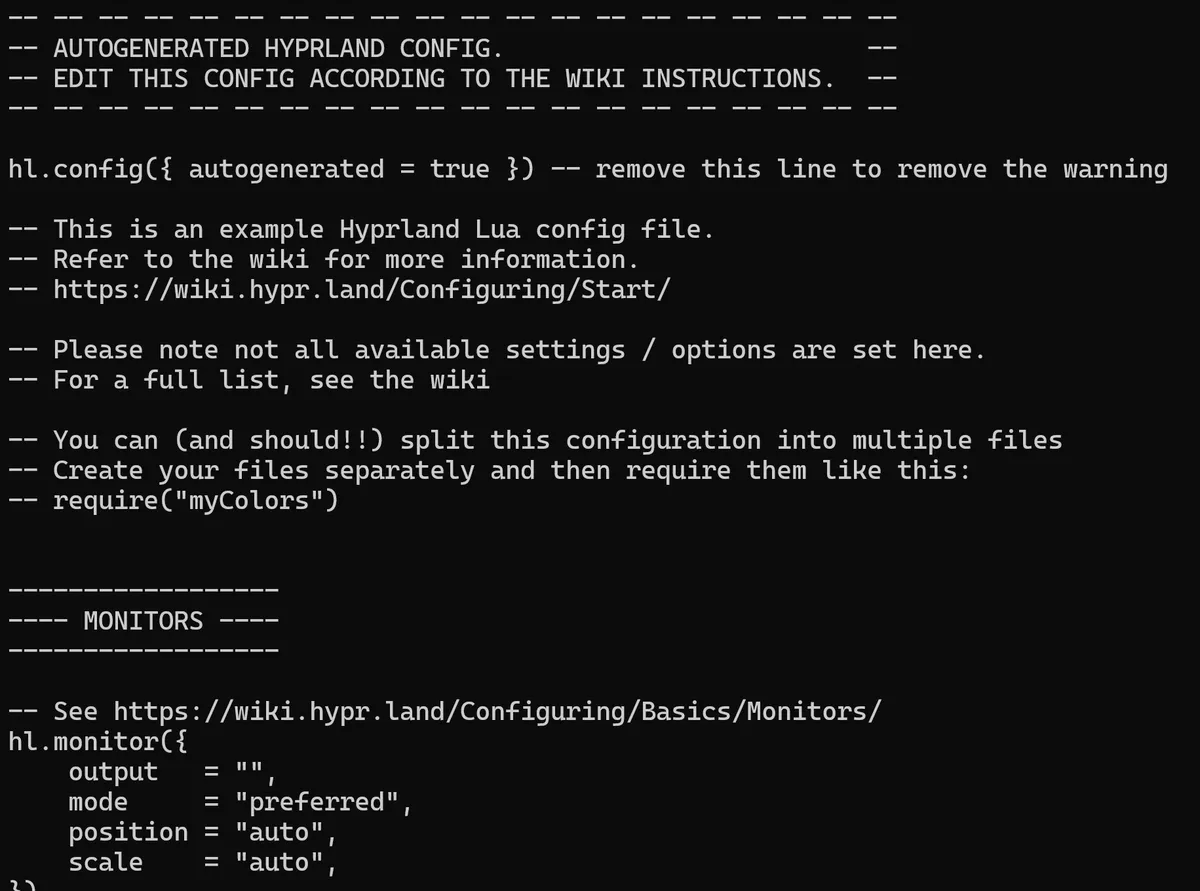
Hyprland will automatically generate an example config for you if you don't have one. You can find an example config here
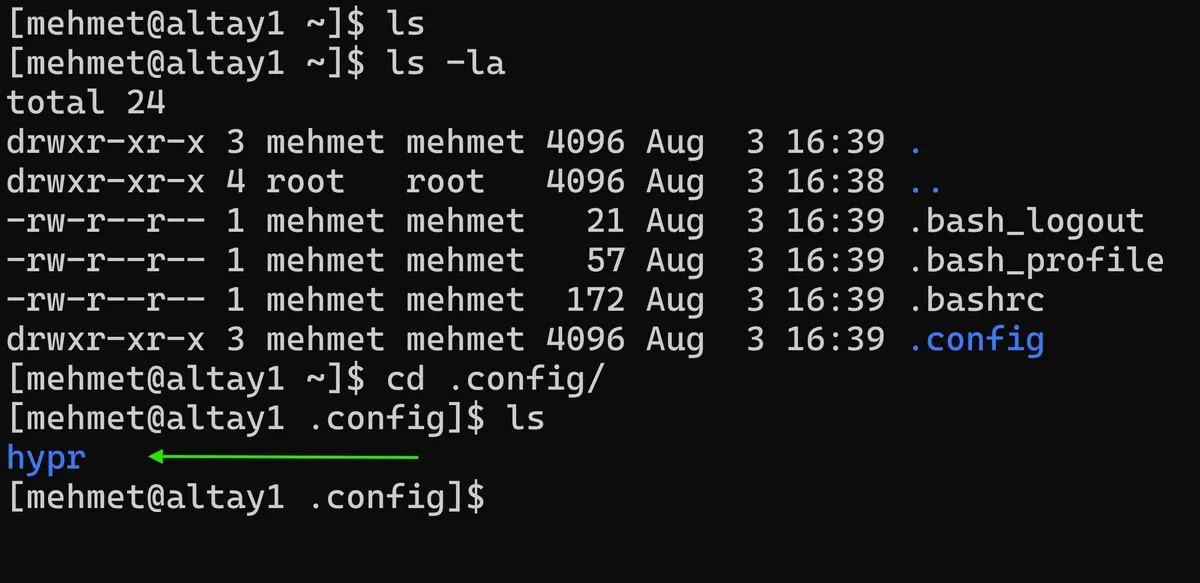
However, when I cannot see this /.config/hypr/hyprland file in it's supposed location. When I run the Hyprland command in the shellto try to force this I can see that there is an error:
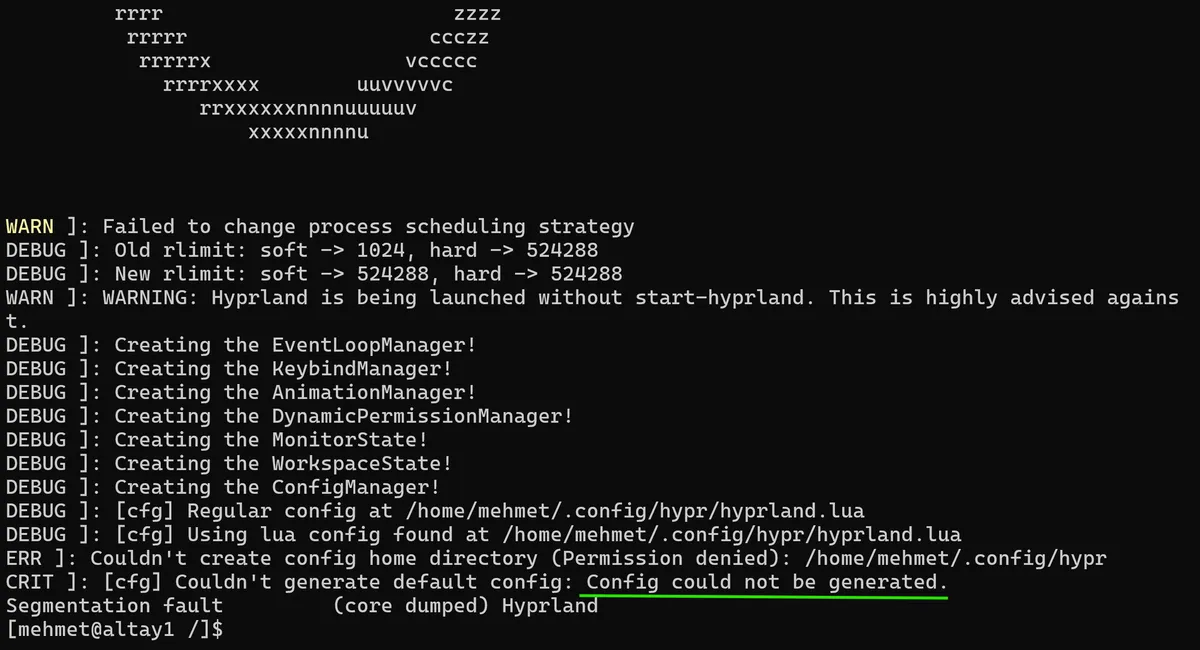
After some digging I've found that I don't have a home directory for my user mehmet, nor is there any config directory. After creating this and still running into some issues I found out that I need to make sure that I'm using the TTY native terminal interface for the system I'm on, rather than the software-emulated /dev/pts/0.
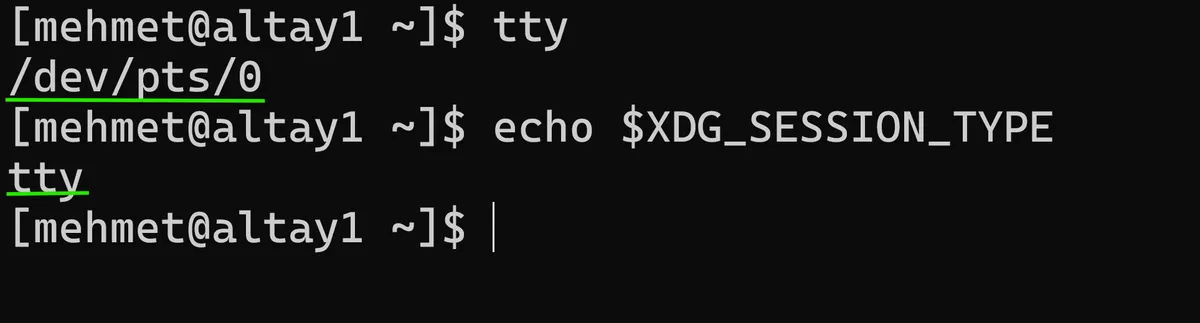
By running both tty to see terminal I'm connected to and echo $XDG_SESSION_TYPE - a Linux environment variable that tells apps how your my machines graphics display is running - it's clear that the mismatch between the two is what is causing this issue. This is likely because I am currently SSH'd into my Arch system from my laptop that /dev/pts/0 is showing as the terminal emulator.
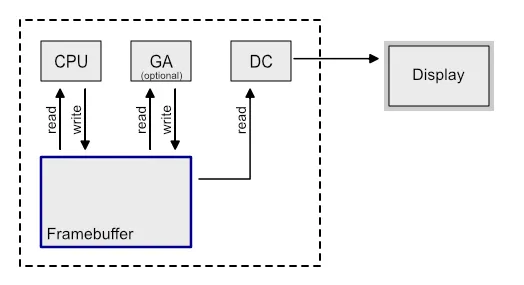
The SSH /dev/pts/0 is actually a software-emulated pseudo-terminal which doesn't have any direct access to the system's graphics or hardware. Given that SSH is almost entirely based around text-interactions with the system, so it makes sense why this doesn't work. Hyprland, on the other hand needs a real, native TTY (Teletypewriter, or standard text terminal interface) to run as they interact with the graphics abstraction layer known as the Framebuffer, which can actually communicate with my systems GPU.
By running both the tty command to see what terminal I was connect to and the echo $XDG_SESSION_TYPE command, which is a Linux env variable that tells apps how my graphics display is running, it became clear that it was this mismatch that was causing the issue. Being in /devs/pts/0, the software-emulated terminal, meant I had no access to the graphics of the machine.
After making this realisation I disconnect from SSH and actually connect one of my monitors and keyboard to the GMKtec mini-pc before running the tty command again and can now see that without the SSH connection, I am now using the /dev/tty1 native terminal interface. I now run the Hyprland command and instantly see my machine actually create the Hypr config file now:
Before Hyprland could work, I had to install polkit sudo pacman -S polkit and rtkit sudo pacman -S rtkit and also had to add my user to the video group:
sudo usermod -aG video mehmet
Polkit (PolicyKit) handles system-wide permissions. Without it, many graphical applications that need elevated privileges will fail silently. If Hyprland needs to do something that requires elevated priviledges, like mounting a USB drive or changing a system time, it will send a request to Polkit to check its configuration and deny or grant access to these permissions.
Rtkit (RealtimeKit) manages real-time scheduling permissions. This is important for audio applications and other time-sensitive processes. For Hyprland specifically, I need to install this as Rtkit is an important part of integrating Wayland compositors with the audio drivers and ensuring audio runs smoothly on the system.
Also adding my user to the video group ensures proper GPU access. This group gives applications permission to use the DRM (Direct Rendering Manager) subsystem, which is how Linux communicates with graphics hardware. Without membership in the video group, my user would not be able to talk to the GPU directly, and any app that would need hardware acceleration including Hyprland itself would not be able to render graphics.
With Polkit, Rtkit, and the video group sorted, I had successfully generated the default Hyprland configuration file. But the journey wasn't over yet. Reading further into the Hyprland documentation, I discovered that I needed to add a specific group of environment variables to this generated hyprland.conf file to make Hyprland actually work:
env = XDG_RUNTIME_DIR,/run/user/1000
env = XDG_SESSION_TYPE,wayland
env = WAYLAND_DISPLAY,wayland-1
These environment variables might look like cryptic incantations to a beginner, but they're actually quite logical once you understand what they do:
XDG_RUNTIME_DIR – This tells the system where to store temporary runtime files – including the Wayland socket that applications use to communicate with the compositor. Without this, applications literally don't know where to find Hyprland. If this variable isn't set, any application you try to launch will fail to connect to the compositor and crash.
XDG_SESSION_TYPE – This explicitly tells the system that we're using Wayland. Some applications need to know whether they're running under Xorg or Wayland to enable certain features. Setting this to wayland prevents compatibility issues with applications that behave differently depending on the display protocol.
WAYLAND_DISPLAY – This specifies the exact socket name for Wayland communication. By default, it's wayland-0, but you can customize it if you're running multiple Wayland compositors. This variable tells applications exactly which socket to connect to.
These variables are essential because Wayland is a client-server architecture. The compositor (Hyprland) creates a socket, and applications (clients) connect to that socket to display their windows. If the socket location isn't properly advertised through these environment variables, the whole system falls apart.
With all these settings done, I was confident. I saved the config file, restarted my machine, logged in on /dev/tty1, and ran Hyprland again.
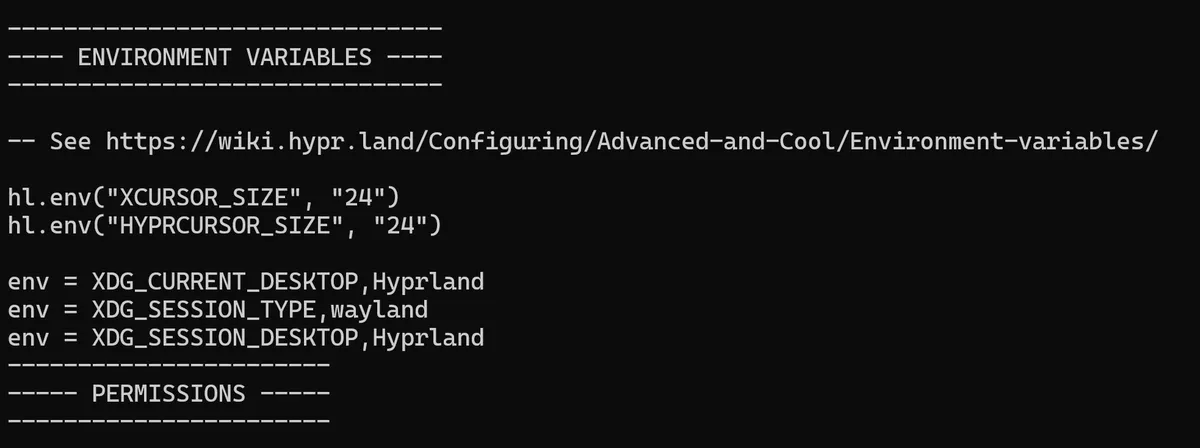
So now all of these settings are done, I should now be able to restart my machine, launch Hyprland and it should work. Let me see.
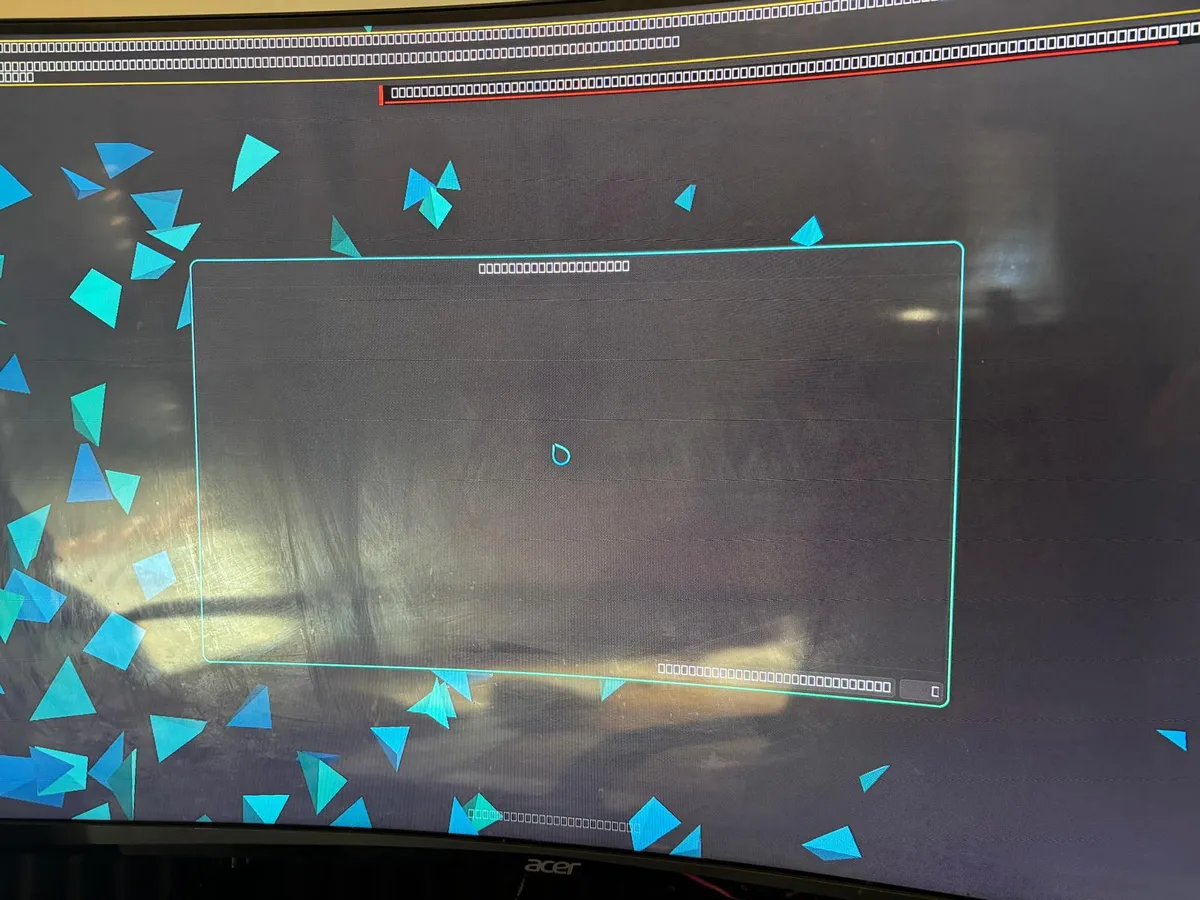
Ok, it didn't work. As you can see from the image, the Hyperland UI was attempting to load and I could see the beginnings of a graphical interface as the compositor was clearly trying to start, but instead of a usable desktop I was greeted by something that is clearly corrupted (or from some kind of ancient apocalyptic tome). After a lot of digging and researching, I realised that I actually needed to install pipewire and wireplumber as well as run pacman -S xdg-desktop-portal-hyprland.
The xdg-desktop-portal-hyprland package specifically provides the portal interface for Hyprland. Portals are a D-Bus interface that allows sandboxed applications to request permissions from the system. The Hyprland portal specifically handles screen sharing permissions, system theme integration and file chooser dialogs, amongst many other things. You might be wondering why missing audio and portal components caused my display to become garbled? The reason is because modern graphic compositors like Hyprland are deeply integrated with these services.
When Hyprland starts, it attempts to initialise several subsystems in order:
The Wayland socket – For client-server communication
The DRM subsystem – For GPU access
The audio subsystem – Through PipeWire for sound and screen sharing
The portal subsystem – For application integration
The session management – Through WirePlumber
If any of these subsystems fail to initialise, Hyprland doesn't entirely crash but it does continue to run in a degraded state with garbled rendering, as seen in my pic above. After installing PipeWire and WirePlumber, I enabled their systemd services so that they would automatically start with my session:
systemctl --user enable pipewire
systemctl --user enable wireplumber
systemctl --user start pipewire
systemctl --user start wireplumber
The Final Moment
With everything finally installed - polkit, rtkit, the video group, pipewire, wireplumber and the xdg-desktop-portal-hyprland, as well as the environment variables being correctly configured, I took a deep breath and ran the command one more time
Hyprland
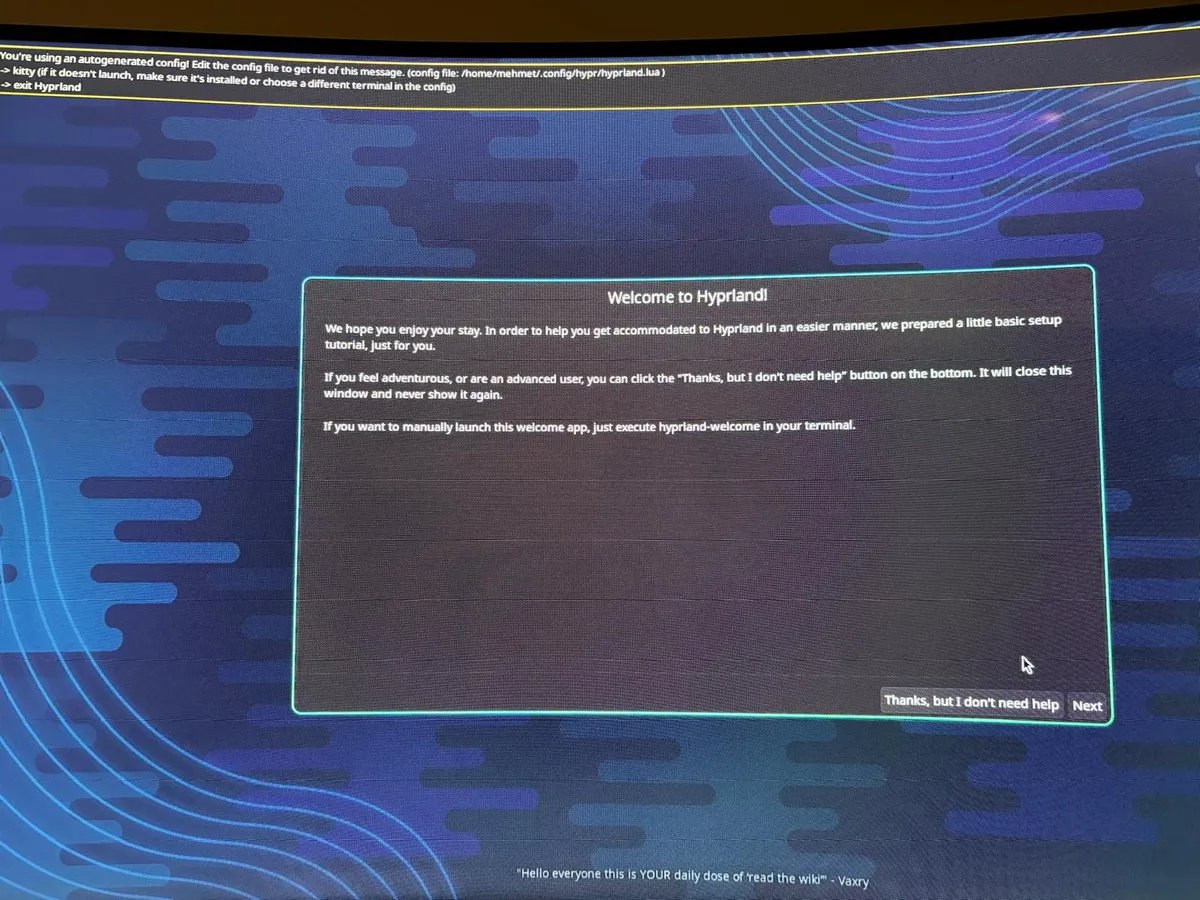
Success!!! 🎉🥳🎉
I'm immediately welcomed by the Hyprland window on my monitor. After all the issues getting this up and running, I now finally have a working Wayland compositor and windows manager on my Arch system. The configuration is indeed minimal, no wallpaper, no system tray, no screen locking or app launcher and not even a browser, so I will most likely be spending many hours customising the hyprland.conf file to get this system as good as my daily-driver setup.
Linux by Fire: Postlude

Throughout this series you have (hopefully) been following my journey in building an Arch system from the ground up. As a Platform engineer who deals with Linux daily but still feels the need to improve my Linux skills, I've tried to be as comprehensive as possible in this journey. I went through the finer points of Arch's installation, partition schemes, encryption with LUKS, network configuration, basic security hardening and boot loading. It hasn't been easy but I've found it to be a valuable endeavour and I would highly recommend that you do the same.
With the advent of containers, cloud and LLMs, the reality is that all of these modern technologies that shape the world we know are running on Linux or some kind of Linux abstraction. Even if these abstractions make it appealing to pretend that they do not rely on Linux, as engineers we must never forget this and only continue to deepen our knowledge and understanding of the OS.
This series may be ending, but the journey continues. I hope you've learnt something valuable from this series and I really appreciate you tagging along.
Thanks as always,
Mehmet